Auto Tapper Frequently Asked Questions
Find detailed answers about system compatibility, touch and swipe automation, keyboard hotkeys, security, licensing, and technical support. You can also inspect the screenshot gallery or return to the Auto Tapper home page to download the free trial.
Getting Started & Compatibility
Do I need a touch-screen monitor to use Auto Tapper?
No. Auto Tapper simulates multi-point screen taps, clicks, and swipe gestures on standard non-touch Windows 10 and Windows 11 monitors without requiring touch hardware.
Which versions of Windows does Auto Tapper support?
Auto Tapper is built for 64-bit editions of Windows 10 and Windows 11.
Does Auto Tapper require an internet connection to run?
No. After installing the 1.41 MB .msi package (version 2.0.0.1), Auto Tapper works completely offline and stores your saved macro scripts locally on your PC.
How do I install or uninstall Auto Tapper?
Download AutoTapperSetup.msi (1.41 MB, version 2.0.0.1, last updated 11 April 2025) and follow the standard Windows installer prompts. Because it uses a standard MSI package, you can uninstall it cleanly anytime from Windows Settings → Installed Apps or Control Panel.
Features, Scripts & Controls
What actions can Auto Tapper automate?
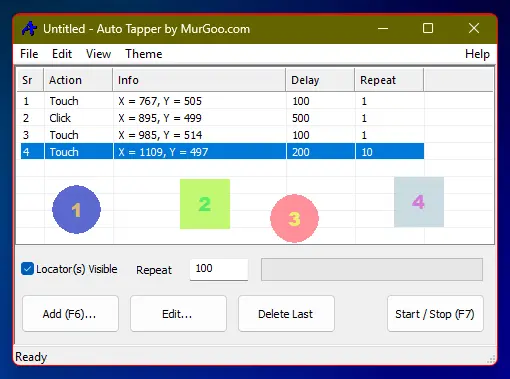
Auto Tapper automates standard mouse clicks, multi-point screen taps, directional swipe gestures, and mouse drag-and-drop paths with configurable delays, repeat counts, and swipe velocities.
How do I choose exact screen coordinates without typing them manually?
Use the built-in Visual Target Locators to drag overlay markers directly onto specific pixels on your screen. Checkboxes in the main window let you show or hide markers on demand, and locators hide automatically whenever macro execution starts.
Can I use keyboard shortcuts to control macro playback?
Yes. You can assign customizable keyboard hotkeys to capture coordinates or start and stop macro loops instantly without switching windows.
Can I save and organize multiple macro scripts?
Yes. All configured sequences can be saved to local data files and reloaded whenever needed. You can also customize interface colors and light or dark themes to visually distinguish your saved scripts.
How does Auto Tapper differ from MurGee Auto Clicker?
Auto Tapper focuses on multi-point screen touch simulation, tapping, swiping, and drag gestures. For workflows requiring high-frequency cursor clicking, randomized click intervals, and synchronized keyboard and mouse recording, consider the companion utility MurGee Auto Clicker for Windows.
Security & Performance
Is the Auto Tapper installer digitally signed and scanned for malware?
Yes. The official AutoTapperSetup.msi installer (1.41 MB, version 2.0.0.1, last updated 11 April 2025) is digitally signed by Daanav Softwares and has been scanned with VirusTotal so you can verify publisher authenticity and file safety before installation.
Why might antivirus tools or games flag automated clicking utilities?
Because Auto Tapper simulates native mouse and touch inputs through Windows APIs and interacts with system input hooks, certain heuristic security scanners or anti-cheat layers may flag background automation engines.
Will Auto Tapper slow down my computer while running?
No. Auto Tapper is a lightweight native Windows utility designed for minimal CPU and RAM overhead during background macro execution.
Trial, Licensing & Technical Support
How many free uses are included in the trial, and are any features locked?
The free trial allows usage up to 24 times with full functionality unlocked so you can thoroughly test multi-point tapping, swiping, hotkeys, and local script files before purchasing a license.
How much does an Auto Tapper license cost and how long is it valid?
Once your 24 free trial uses end, a software activation license costs USD 7.89 and unlocks full functionality on one Windows PC for up to six months. Review the Privacy & Refund Policy and End User License Agreement for complete terms.
How can I contact technical support?
Free technical support is available by email at Support@MurGoo.com. Include your Windows version and a brief description of your macro workflow for the fastest response.